Quality is lost by re-encoding, not by sending
A JPEG is already compressed, and the compression is lossy. Something opens the file, throws away detail to hit its own quality target, and writes a new file. That is the mechanism, and it has nothing to do with how far the photo travelled.
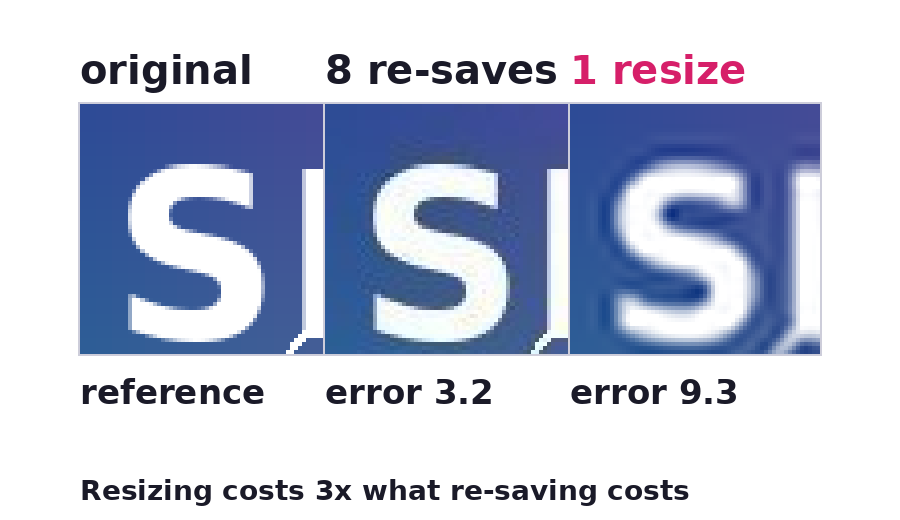
The common version of this story is that each forward degrades the picture a little more. It is worth measuring rather than repeating, so here are the numbers from one test image, scored as mean error against the original:
| What happened to it | Mean error |
|---|---|
| Saved as JPEG once, quality 88 | 2.38 |
| Saved eight times at the same quality | 3.37 |
| Saved once at quality 88, then 75, then 60, then 50 | 6.72 |
| Resized to a third and scaled back up | 9.66 |
So repeated saving at one quality setting hardly compounds at all. What actually ruins a photo is each hop choosing a lower quality, and above all resizing, which throws pixels away outright and cannot be undone by enlarging the result later. One resize costs nearly three times what eight re-saves cost.
So the way to send a photo at full quality is not a better app. It is to make sure nothing on the path resizes or re-encodes it.
A link means nothing re-encodes it
The upload reads the file and writes those bytes to storage. There is no image library on that path at all, which is a stronger guarantee than a promise not to compress: there is no code present that could. The link serves the same bytes back.
Check it yourself in two commands
This is the part worth doing once, so you stop having to trust anybody about it. Hash the file before you upload it, then hash what the link returns:
sha256sum holiday.jpg
# 9f2c...  holiday.jpg

curl -s "https://holiday.snapy.page/?raw=1" | sha256sum
# 9f2c...  -
Matching hashes mean the files are identical to the byte. ?raw=1 matters here: without it
a browser request gets the viewer page, and with it the request gets the raw file, which is
what you want to compare. If anything in the chain had recompressed the photo, even
slightly, the hashes would not match. There is no way to fake this test.
Upload the original, not a copy
The most common way a photo arrives soft has nothing to do with the tool. The file that got uploaded was already a copy: a screenshot of the picture, an image saved out of a chat thread, or a version that had been pasted into a document and pulled back out. Every one of those is a re-encode that happened before the upload, and nothing downstream can undo it.
Go back to the camera roll or the export folder and upload that file.
What this will not do
It will not improve a photo that arrived already compressed. Nothing can, because the discarded detail is gone.
It will not convert formats. A HEIC stays a HEIC, which means it is stored and downloaded at full quality but not displayed in the browser, because no browser renders HEIC. The same applies to TIFF, PSD and AI files: stored faithfully, offered as a download. A bare SVG is refused outright.
And one file caps at 150MB. Above that the upload is rejected rather than shrunk, which is the right way round for this particular job.
Related
- Turn an image into a link covers using the same link inside an
<img>tag, in Markdown, or in a chat box. - See when someone opens your document explains what the open count on a photo link records, and what it does not.
- Give a file a direct download link skips the viewer page and hands the original over immediately.
- Everything else lives on the Snapy tools page.